
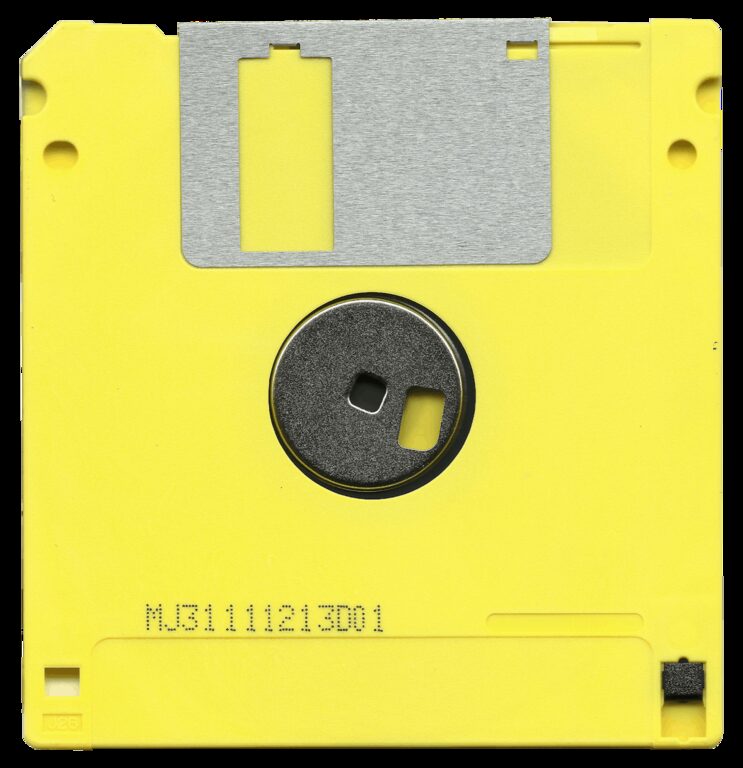
Backing up your photos and files is one of the best ways to protect your valuable memories and important data from accidental loss. Whether it’s due to hardware failure, theft, or accidental deletion, having a reliable backup can save you time and stress. In this guide, we’ll walk you through simple and effective methods to back up your files, so you can rest easy knowing your data is safe.
Why Backing Up Your Data Is Important
Your photos, documents, and other files represent time and effort, and sometimes even sentimental value. Without a backup, unexpected events like a computer crash or losing your phone could mean losing all your data forever. Regularly backing up ensures that you have copies stored in a separate location, so even if your device is lost or damaged, your files remain intact.
Common Backup Methods
There are several ways to back up your photos and files. Let’s review some popular and user-friendly options:
1. External Hard Drives
An external hard drive is a physical device you connect to your computer via USB. It offers large storage space and full control over your backups.
Pros:
– One-time cost
– No internet needed
– Fast backup and retrieval
Cons:
– Can be lost, stolen, or damaged
– Requires manual connection
2. USB Flash Drives
USB flash drives are compact and easy to use but have much less storage space compared to external hard drives.
Best for: Backing up smaller files or selective photos.
3. Cloud Storage Services
Cloud storage keeps your files online, accessible from any device with internet access.
Popular options include:
– Google Drive
– Dropbox
– Microsoft OneDrive
– Apple iCloud
Pros:
– Automatic backup options
– Access files anywhere
– Protects files if your device is lost
Cons:
– Requires internet
– Free storage limits (usually 5-15 GB without cost)
– Long-term costs for larger storage
4. Network Attached Storage (NAS)
NAS devices are storage hubs connected to your home network, allowing multiple devices to back up files wirelessly.
Best for: Families or small offices with multiple users.
How to Back Up Your Photos and Files: Step-by-Step
Step 1: Decide What to Back Up
Start by organizing your files. Photos, important documents, videos, and project files are often top priorities.
– Review your folders on your computer or phone.
– Delete duplicates or unnecessary files to save space.
– Group files into folders (e.g., Photos, Work Documents, Personal).
Step 2: Choose Your Backup Method
Consider your budget, storage needs, and convenience. Many people use a combination, such as an external hard drive plus cloud backup, for extra security.
Step 3: Back Up Using an External Hard Drive
- Connect the external drive to your computer.
- Open your file explorer (e.g., File Explorer on Windows or Finder on Mac).
- Drag and drop the folders you want to back up onto the external drive.
- For regular backups, consider using built-in tools like Windows Backup or Time Machine on Mac.
- Sign up for a cloud service if you don’t have one.
- Download the app on your computer and mobile devices.
- Upload your files manually or enable automatic syncing.
- Organize your files in the cloud for easy access.
Step 4: Back Up Using Cloud Storage
Remember to review your cloud storage regularly, especially if nearing storage limits.
Step 5: Automate Your Backups
Setting backups to run automatically reduces the risk of forgetting to back up your files.
– Use backup software or apps that support scheduled backups.
– Many cloud services sync folders automatically.
– For external drives, Windows and Mac offer tools that run backups on a set schedule.
Step 6: Test Your Backup
Occasionally check that your backups are working correctly by opening some files from the backup location. This ensures your files aren’t corrupted and can be restored when needed.
Tips for Effective Backup Practices
– Keep multiple backups: Store your backups in two or more locations, such as an external drive plus cloud storage.
– Update your backups regularly: Depending on how often you create or change files, backup daily, weekly, or monthly.
– Use strong passwords for cloud services: Protect your data from unauthorized access.
– Encrypt sensitive files: For added security, especially when using cloud storage.
– Label your backup drives: Clearly mark external drives for easy identification.
Backing Up Mobile Photos and Files
Your phone likely contains many photos and files worth backing up.
– Enable automatic photo backup with apps like Google Photos or iCloud Photos.
– Use apps to sync documents and other files.
– Regularly transfer files to your computer or external drives if you prefer physical backups.
Conclusion
Backing up your photos and files doesn’t have to be complicated or expensive. By choosing a method that fits your needs, staying organized, and making backups a routine part of your digital life, you can protect your important data from unexpected loss. Start today, and give yourself the peace of mind that your memories and important files are safe.
—
If you found this guide helpful, consider sharing it to help others protect their data too!